Most keyboard discomfort starts with a simple mismatch: your shoulders are wider than a one-piece keyboard, but a straight keyboard asks both hands to meet in the middle. That small compromise repeats thousands of times a day.
A split keyboard changes the geometry of typing. Instead of adapting your body to one fixed rectangle, you place each half where your arm naturally wants to land. The goal is not a perfect posture frozen in place. The goal is less forced angle, less unnecessary reach, and more room to adjust through the day.
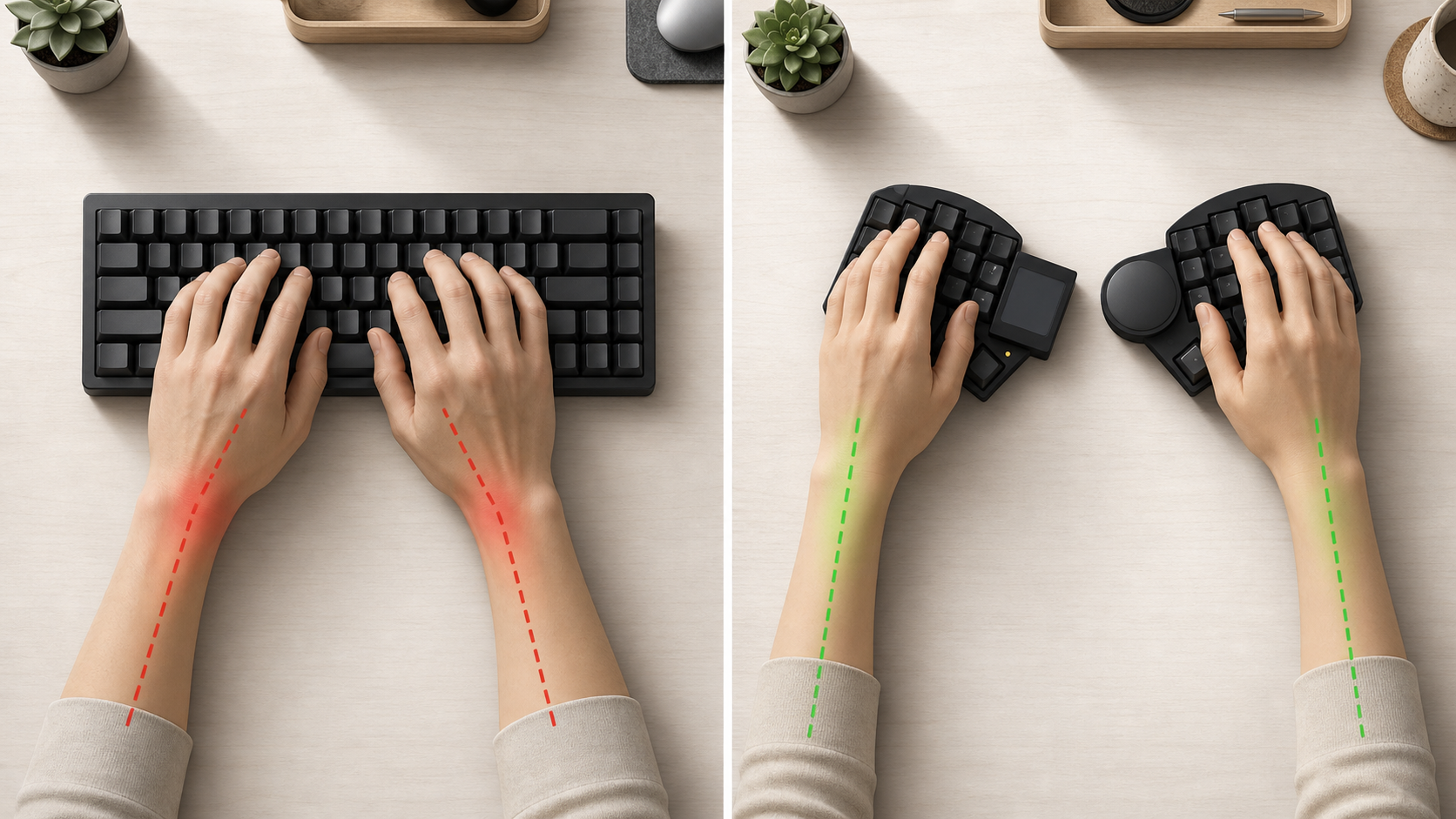
The first problem: the wrist bends sideways
Put your hands on a straight keyboard and look at the line from your forearm into your middle finger. For many people, that line is no longer straight. The wrist angles outward because the hands must reach inward to the home row.
This sideways bend is called ulnar deviation. A little movement is normal; holding it for long sessions is the issue. Tendons and nerves have to move through a narrower, more loaded path when the wrist is held at an angle. A split keyboard gives each hand its own half, so you can rotate and separate the halves until the wrist and forearm line up more naturally.
The second problem: the shoulders collapse inward
A narrow keyboard does not only affect the wrist. It also pulls the elbows inward, which encourages internal shoulder rotation. You may not notice it at first, but the posture is easy to feel: elbows tucked, upper back rounded, hands reaching into the same small area.
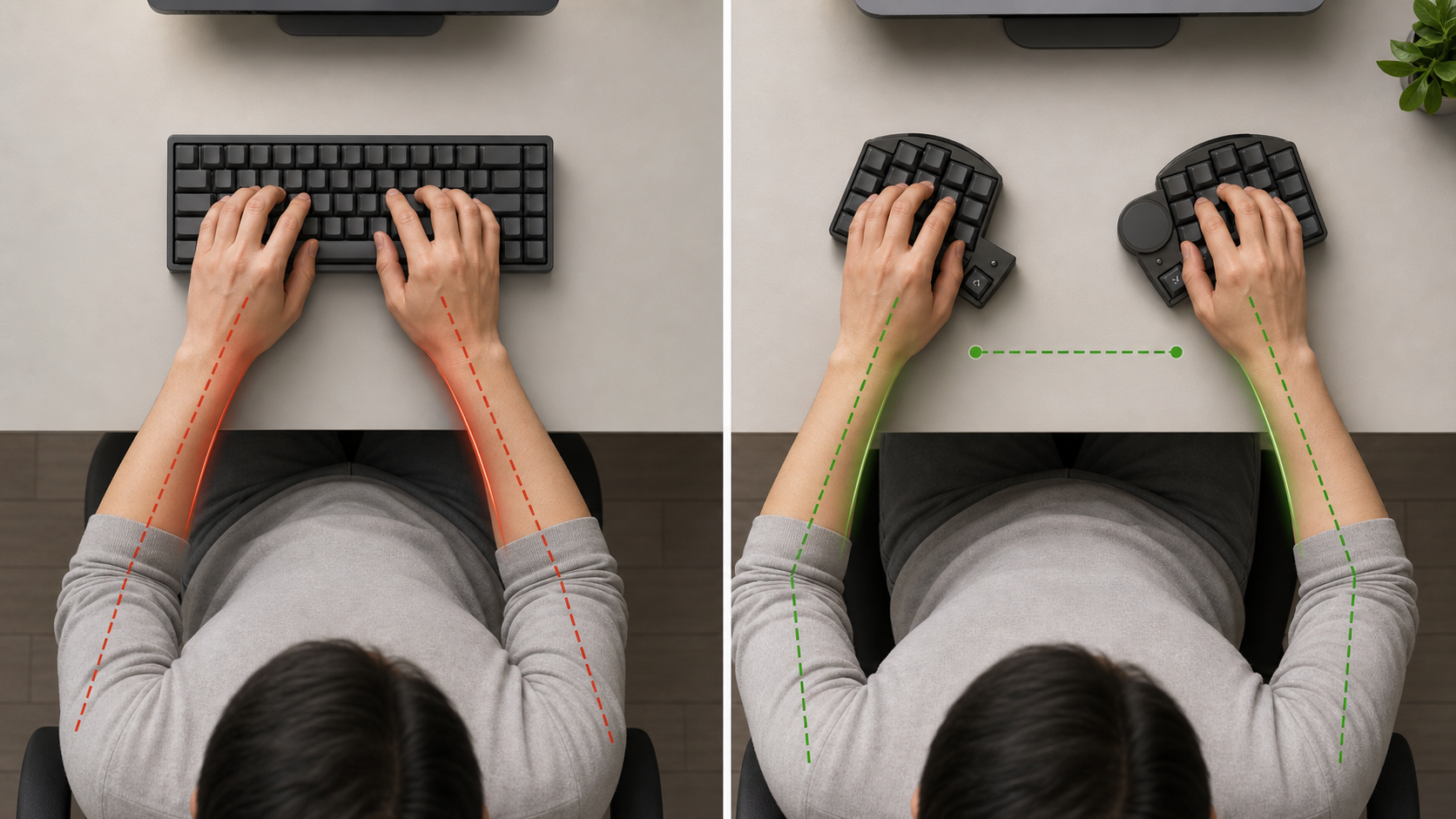
Separating the halves lets the arms extend from the torso with less inward pull. That does not mean the halves must be far apart. A good starting point is simple: place them roughly under your shoulders, angle them inward instead of outward, then narrow or widen the gap until your elbows feel relaxed and each keyboard half, wrist, and forearm feels like one line.
The third problem: the desk gets organized around the keyboard
Full-size keyboards often push the mouse far to the side. That creates another repeated reach: keyboard in the center, pointer device off to the right, shoulder following the hand. Compact split keyboards solve this in a different way. They leave the center of the desk available.
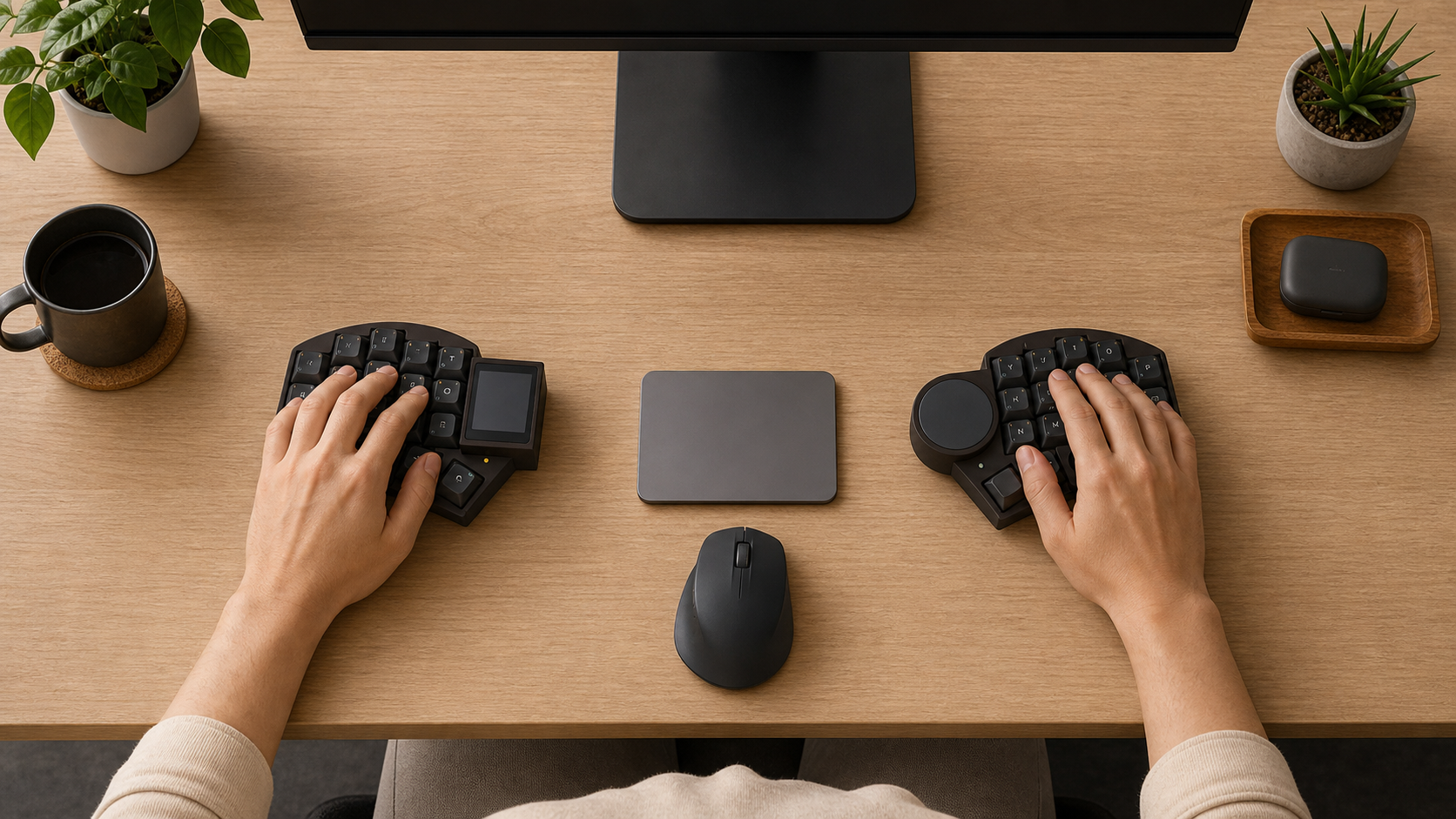
This is why small split keyboards can feel more comfortable than their key count suggests. With fewer keys and two movable halves, the pointer device can sit between the hands, notebooks can fit in the center, and the monitor can stay aligned with your body.
Where Ferris Sweep Pro fits
Ferris Sweep Pro follows the compact split idea: a small footprint, independent halves, column-staggered key positions, integrated pointer control, a status display, and ZMK Studio support for live keymap changes. The important point is not that everyone should use the same angle or the same keymap. It is that the keyboard gives you enough freedom to find a setup that matches your body and workflow.
A practical setup checklist
- Start with the halves near your own comfortable shoulder-width gap.
- Angle the halves inward, not outward, until each keyboard half, wrist, and forearm forms one relaxed line.
- Keep the mouse, trackpad, or trackball close enough that your shoulder does not chase it.
- Change one thing at a time, then type for a real work session before judging it.
Expect a transition period
Moving to a split keyboard changes muscle memory. The first few days can feel slower, especially if you also switch to fewer keys or layers. That is normal. Start with short sessions, keep your old keyboard nearby if you need speed for urgent work, and let comfort be the first metric.
A split keyboard is not medical treatment and cannot fix every workstation problem. But it removes several common constraints at once: wrist angle, shoulder compression, pointer reach, and desk layout. For many people, that is the difference between adapting to the keyboard and letting the keyboard adapt to them.