Hi, in this post I want to talk about the trackpad on Sweep Pro. At first glance, it is just a round touch area on the right half of the keyboard. But the real point is not the extra hardware. The real point is how it changes the way you use a mouse while typing.
If you already use a split keyboard, this feeling is probably familiar: the keyboard can sit in a comfortable position, but as soon as you need to click a button, scroll a page, or drag a window, your hand still leaves the keyboard and reaches for the mouse.
The Sweep Pro trackpad is meant to reduce that interruption. It is not trying to replace every mouse use case. It brings small, frequent pointer actions back near the keyboard: moving the cursor, clicking a link, scrolling a document, panning across long lines of code, or doing a quick drag. If your work is mostly CAD, gaming, or long precise dragging, a separate mouse is still the better tool.
Basic gestures
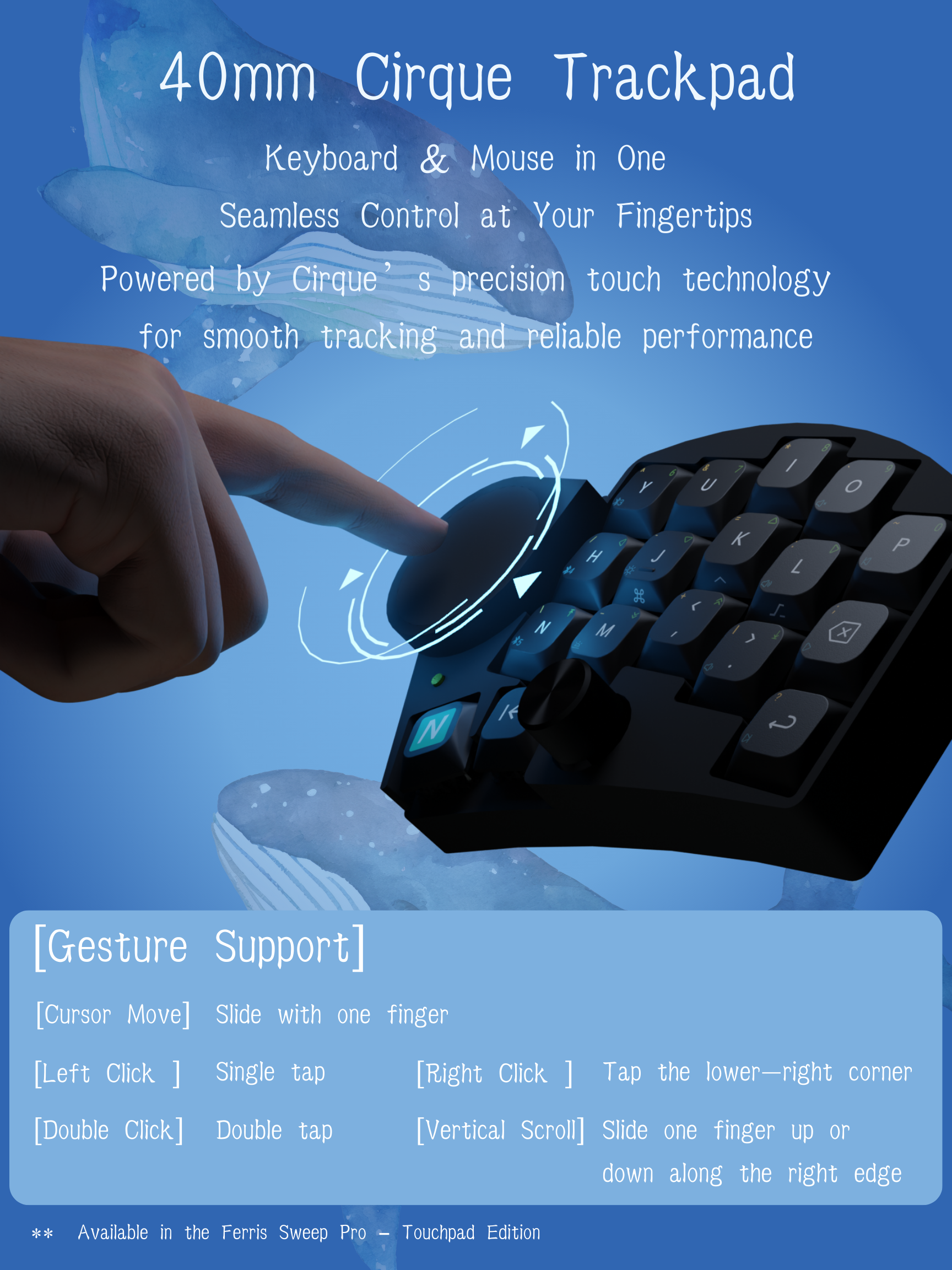
Let's start with the basics. Slide one finger on the trackpad to move the cursor. Tap once for left click. Tap twice quickly for double click. Tap the lower-right area for right click. Slide along the right edge for vertical scrolling.
One expectation is important: Sweep Pro scrolling is a right-edge gesture, not a laptop-style two-finger gesture. Think of it as a small pointer device on the keyboard, with the right edge acting like the wheel.
Hold Z to scroll
Next is the feature I think is most worth showing: hold Z, and movement on the trackpad temporarily becomes scrolling.
By default, moving your finger on the trackpad moves the cursor. While holding Z, the same movement becomes wheel events: up and down scroll vertically, left and right scroll horizontally. Release Z, and the trackpad goes back to cursor movement.
This is especially useful when writing code or reading docs. On a long article, hold Z and slide up or down to scroll. In a wide code file or table, hold Z and slide left or right to pan horizontally.
Right-edge horizontal scrolling
There is one more detail: if you hold Z and use the right-edge scroll gesture, Sweep Pro converts the normal right-edge vertical wheel into horizontal wheel.
In other words, without Z, the right edge scrolls vertically. With Z, the same right-edge gesture scrolls horizontally. It sounds small, but it is very useful for long code lines, tables, timelines, and design files.
Why mouse keys and combos still matter
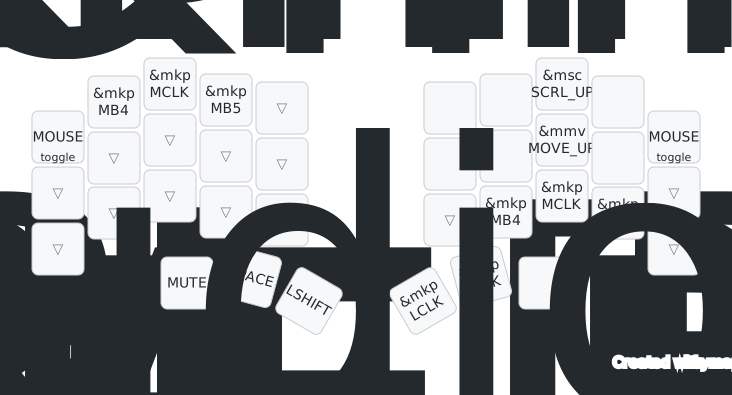
The trackpad is good for sliding and tapping, but some actions are more stable on physical keys. Text selection, window dragging, and click-and-hold file movement all need a clear "hold." For those actions, a key or combo is often easier to control than a pure gesture.
Sweep Pro provides a few mouse combos on the character layers: D plus F for left click, E plus R for right click, C plus V for middle click, F plus G for browser back, and R plus T for browser forward. The same combos also work on the mouse layer, which has explicit LCLK, RCLK, and MCLK keys.
So the better model is this: the trackpad is not replacing every mouse action by itself. It works together with the mouse layer and click combos. Sliding belongs on the trackpad; precise click-and-hold actions can stay on keys.
Summary
If you are just starting with the Sweep Pro trackpad, remember three things. First, basic movement and clicking happen directly on the trackpad. Second, the right edge handles scrolling. Third, hold Z and trackpad movement becomes wheel movement, both vertical and horizontal. Learn those first, then try the mouse layer and speed controls.
That is the core idea of the Sweep Pro trackpad: it is not hiding a mouse inside the keyboard. It is bringing the most common, lightweight, rhythm-breaking pointer actions back under your hands.