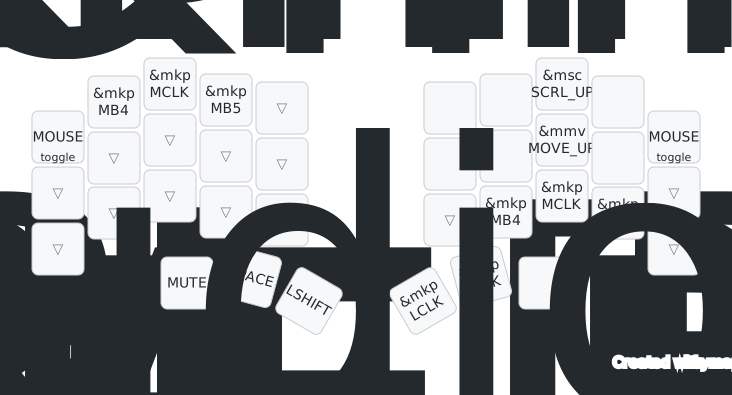
Ferris Sweep Pro Keymap
Introduction
Section titled “Introduction”The keymap images below are exported from keymap drawer, the latest keymap can also be viewed there.
The source code for this keymap is available at nxtkb/Sweep-Pro, which provides the complete configuration for the NXTKB Ferris Sweep Pro keyboard.
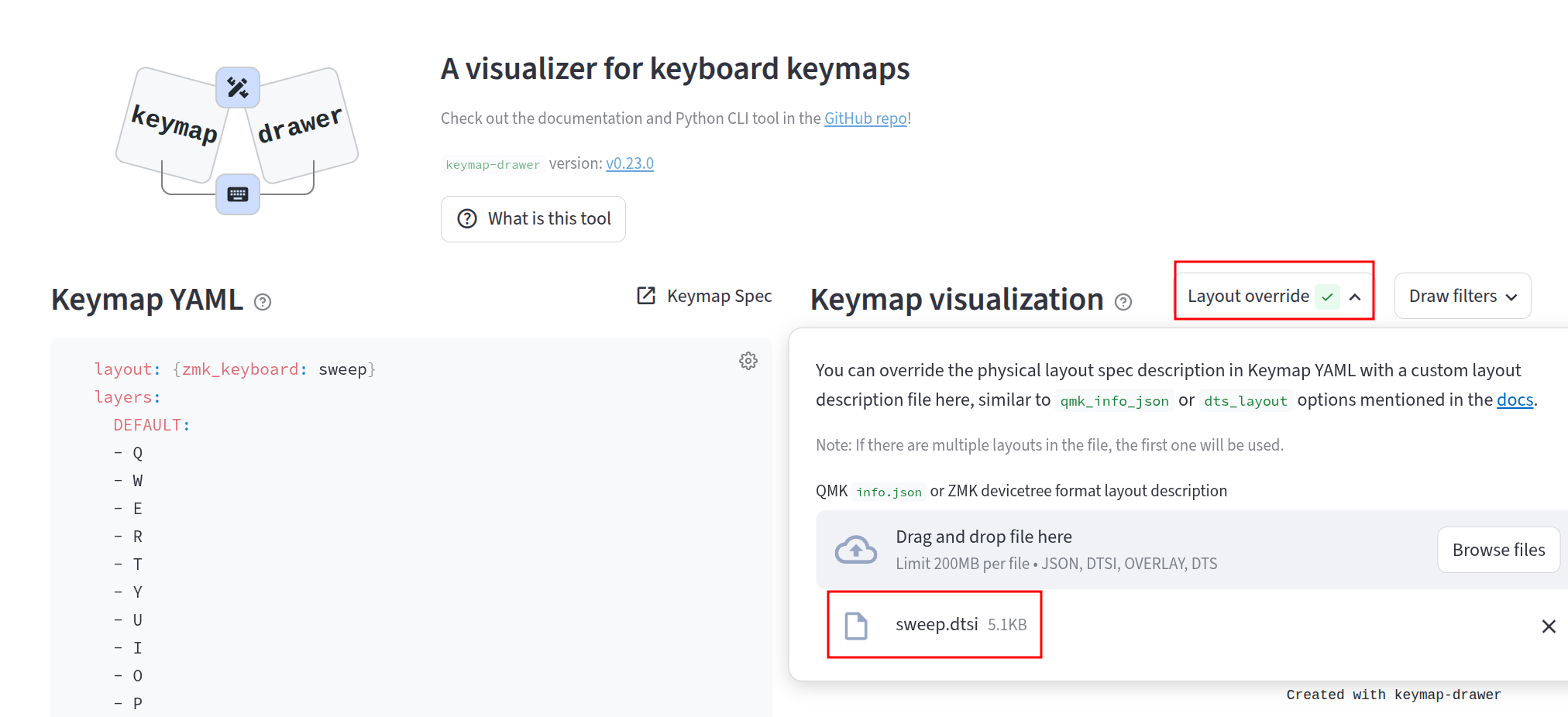
Note: Here we need to set the layout override with this file: sweep.dtsi:
Complete Keymap
Section titled “Complete Keymap”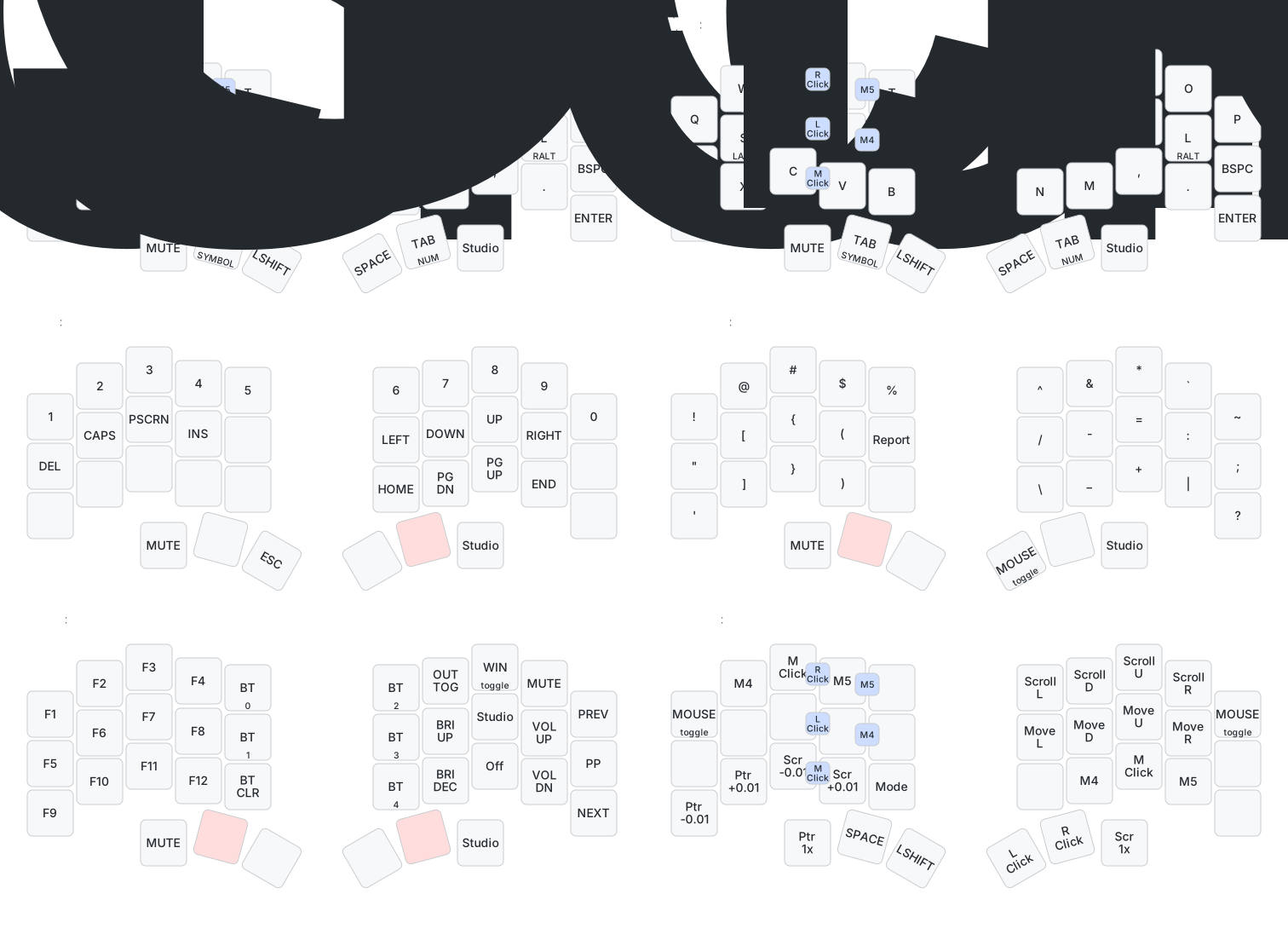
Keymap Layers
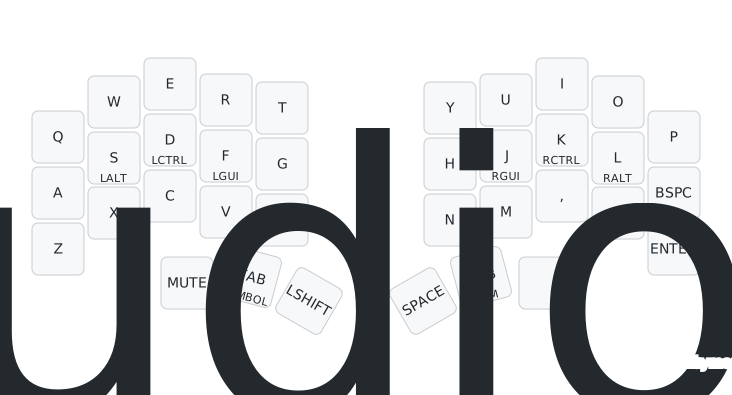
Section titled “Keymap Layers”Characters (Default/Windows Layer)
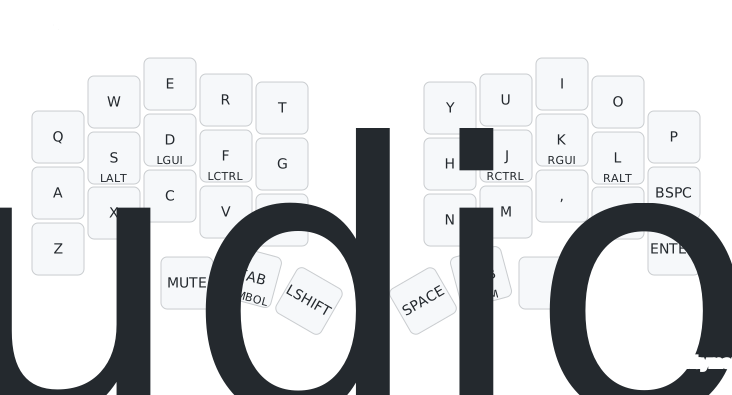
Section titled “Characters (Default/Windows Layer)”- The default layer and Windows layer are the character layers.
- Both layers use home-row modifiers:
CTRL,OPTION (ALT), andCOMMAND (WINDOWS)share the same positions as character keys on the ring, middle, and index fingers. Hold the key for the modifier, or tap it for the character. - Hold
Zand move on the trackpad to scroll in any direction. For right-edge scrolling, holdZto convert the edge gesture from vertical scrolling to horizontal scrolling at the firmware level. - Tap
Xto type the character, or holdXfor left click. - Mouse combos use a 25 ms timeout:
E+Rfor right click,D+Ffor left click,C+Vfor middle click,F+Gfor browser back, andR+Tfor browser forward. - left encoder:
- rotation: adjust volume
- click: toggle mute
- right encoder:
- rotation: adjust brightness
- click: unlock zmk studio
Numbers and Navigation
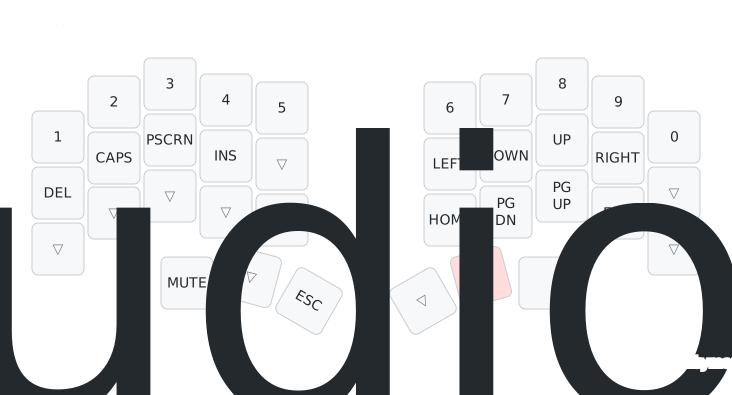
Section titled “Numbers and Navigation”- Hold the right thumb
Tabto enter the numbers and navigation layer. - Release the right thumb
Tabto return to the default or Windows layer.
Symbols (Punctuations)
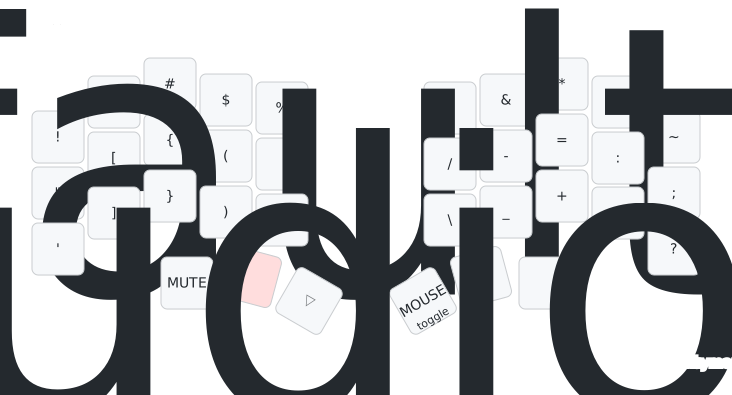
Section titled “Symbols (Punctuations)”- Hold the left thumb
Tabto enter the symbols layer. - Release the left thumb
Tabto return to the default or Windows layer. - Special keys:
Report: type out battery informationMOUSE toggle: switch to mouse layer
Functions
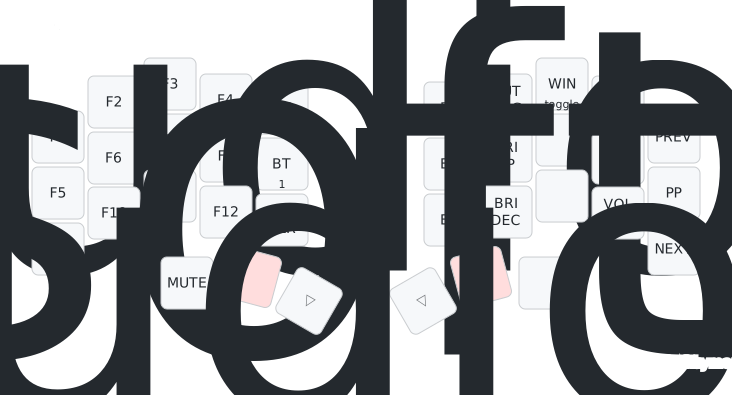
Section titled “Functions”- Hold both thumb
Tabkeys to enter the function layer.BT 0toBT 4: select the Bluetooth profile to connect.BT CLR: clear the selected Bluetooth profile so it can be paired again.OUT TOG: toggle between USB and Bluetooth output.CODEX: pressIto enter the Codex layer.Studio: unlock the keyboard for ZMK Studio.Off: enter soft off. The keyboard can only wake from configured wake-up keys.
- Release the thumb
Tabkeys to return to the default or Windows layer.
- Hold both thumb
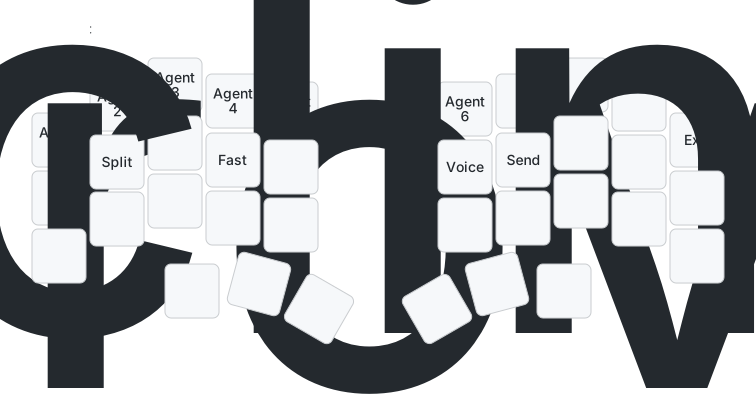
Tabkeys and pressIto enter the Codex layer. Q–Yselect Agent chats 1–6.A,S,D, andFare Approve, Split chat, Decline, and Fast.Hstarts Voice input andJsends the current input.- Press
Pto leave the Codex layer.
- Hold the left thumb
Taband pressSpaceto toggle the mouse layer. - Press
QorPto leave the mouse layer. M4andM5are browser back and forward.F+GandR+Tprovide the same back/forward buttons as combos.- On the left side,
Z/Xadjust pointer speed down/up in0.01xsteps, andC/Vadjust scroll speed down/up in0.01xsteps. - The left encoder adjusts pointer speed coarsely; pressing it resets pointer speed to
1.00x. - The right encoder adjusts scroll speed coarsely; pressing it resets scroll speed to
1.00x. - Pointer speed ranges from
0.10xto4.00x; scroll speed ranges from0.10xto10.00x. - Speed settings are saved separately for USB and each Bluetooth profile.
Modetoggles the Cirque trackpad mode.- Sweep Pro boots the Cirque trackpad in absolute mode by default;
Modeswitches between absolute and relative mode at runtime.