
Use the Trackpad
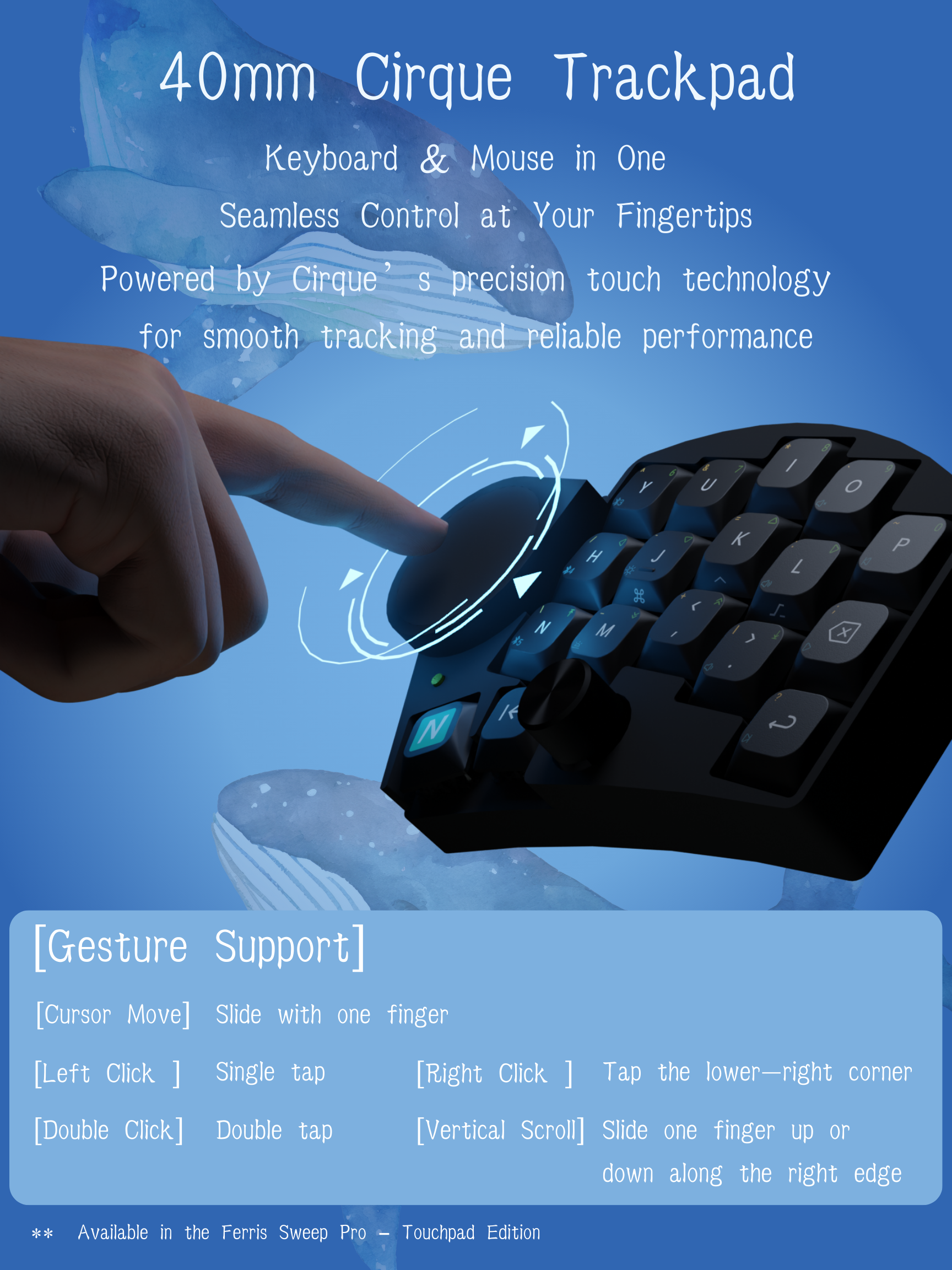
Ferris Sweep Pro versions with the Cirque trackpad can handle pointer movement, clicks, scrolling, and basic drag operations without moving your hand to a separate mouse.
Basic Gestures
Section titled “Basic Gestures”| Action | How to use it |
|---|---|
| Move cursor | Slide one finger on the trackpad. |
| Left click | Tap once anywhere on the trackpad. |
| Double click | Tap twice quickly. |
| Right click | Tap the lower-right area of the trackpad. |
| Vertical edge scroll | Slide up or down along the right edge of the trackpad. |
| Hold-to-scroll | Hold Z, then move on the trackpad. Pointer movement becomes wheel movement while held, so horizontal finger movement sends horizontal wheel events and vertical finger movement sends vertical wheel events. |
| Horizontal edge scroll | Hold Z, then use the right-edge scroll gesture. Sweep Pro converts the native right-edge wheel event into a horizontal wheel event while Z is held. |
| App-level horizontal scroll | Some desktop apps also treat Shift + vertical wheel as horizontal scroll. This is handled by the app or operating system, not by the trackpad firmware. |
X hold left click | Tap X to type the character, or hold it for left click. This is useful for drag selection without switching layers. |
| Mouse click combos | Press D + F for left click, E + R for right click, or C + V for middle click. These combos use a short 25 ms timeout so normal typing is less likely to trigger them by accident. |
| Browser navigation combos | Press F + G for browser back (MB4) or R + T for browser forward (MB5). |
Z still types a normal character when tapped, and only enables drag-scroll while held. X still types a normal character when tapped, and becomes left click when held.
Trackpad Modes
Section titled “Trackpad Modes”The current Sweep Pro firmware boots the Cirque controller in absolute mode:
data-mode = "absolute";The Mode key on the mouse layer runs &crq_mode CIRQUE_MODE_TOGGLE, which switches the Cirque controller between relative mode and absolute mode at runtime. Switch modes while your finger is off the trackpad for the cleanest transition.
| Mode | What it feels like | Sweep Pro behavior |
|---|---|---|
| Absolute mode | The driver reads absolute finger coordinates, then converts them back into REL_X/Y pointer movement. This is the boot default and gives the firmware more control over gesture thresholds. | Supports software tap detection, lower-right right-click zone, tap-drag, right-edge vertical scroll, edge auto-pan, hold-to-scroll with Z, runtime pointer speed, and runtime scroll speed. |
| Relative mode | The Cirque ASIC reports mouse-like relative packets. | Supports pointer movement, tap buttons, native right-edge vertical scrolling, GlideExtend, hold-to-scroll with Z, runtime pointer speed, and runtime scroll speed. |
Use the default absolute mode when you want the more tunable software gesture layer, especially tap-drag and edge auto-pan. Switch to relative mode when you want the ASIC’s stock relative packet and GlideExtend behavior. If the pointer feel changes after pressing Mode, press Mode again to switch back.
Mouse Layer
Section titled “Mouse Layer”For pointer controls that are easier to use as keys, switch to the mouse layer:
- Hold the left thumb
Tablayer key. - Press
Spaceto toggle the mouse layer. - Press
QorPto leave the mouse layer.
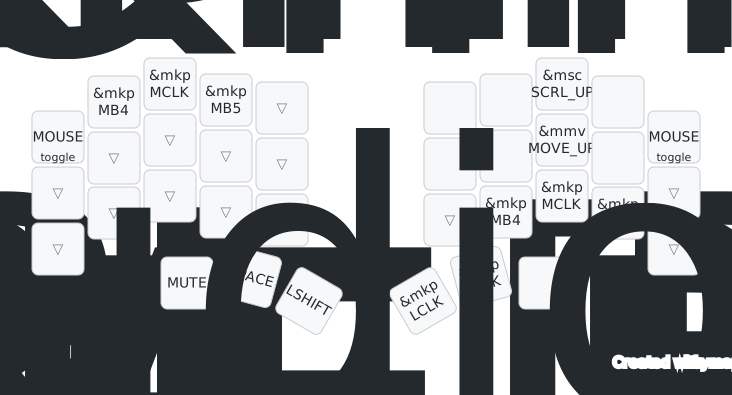
On the mouse layer:
MB4andMB5are browser back and forward.MCLK,LCLK, andRCLKsend middle, left, and right mouse clicks.- The arrow-style mouse keys move the pointer or send wheel events without using the trackpad.
Z/Xadjust pointer speed down/up in0.01xsteps. Hold either key to repeat quickly.C/Vadjust scroll speed down/up in0.01xsteps. Hold either key to repeat quickly.- The left encoder adjusts pointer speed coarsely; pressing it resets pointer speed to
1.00x. - The right encoder adjusts scroll speed coarsely; pressing it resets scroll speed to
1.00x. - Pointer speed is adjustable from
0.10xto4.00x; scroll speed is adjustable from0.10xto10.00x. - Speed settings are saved separately for USB and each Bluetooth profile.
Modetoggles the Cirque trackpad between relative mode and absolute mode.- The same click/navigation combos also work here:
E+Rfor right click,D+Ffor left click,C+Vfor middle click,F+Gfor browser back, andR+Tfor browser forward.
Implementation Notes
Section titled “Implementation Notes”Sweep Pro’s right half defines the Cirque hardware in sweep_right_trackpad.overlay:
- I2C address
0x2awithdata-ready-gpios. sensitivity = "2x".startup-delay-ms = <600>to give the controller time to recover after resets or firmware flashing.idle-packets-count = <3>so relative-mode tap/drag release can be detected after finger lift.primary-tap-enable,glide-extend-enable, andinvert-y. GlideExtend is only used after switching to relative mode.- Absolute-mode tuning for touch threshold, tap timing, tap-drag, lower-right secondary tap, edge auto-pan, and right-edge scroll.
The shared keymap connects the trackpad listener to two processors:
&glidepoint_listener { input-processors = <&pointer_processor 0 0 &drag_scroll_processor 1 8>;};pointer_processor handles runtime pointer speed when Z is not held. drag_scroll_processor handles hold-to-scroll, native edge-wheel scaling, and the horizontal-when-enabled conversion that turns right-edge wheel into horizontal wheel while Z is held. Both processors use multiplier-based runtime speed rather than fixed speed levels.
- Edge scrolling is a right-edge gesture, not a two-finger laptop-style gesture.
- Hold
Zwhen you need firmware-generated horizontal wheel events from the trackpad. - To avoid relying on app-level
Shift+ wheel behavior, holdZwhile using the right-edge scroll gesture, or use the mouse layer’sSCRL_LEFTandSCRL_RIGHTkeys. - For text selection or window dragging, hold the
D+Fleft-click combo, use the mouse layer’sLCLK, or double-tap the trackpad and keep your finger down on the second tap. - Use NXTKB Input Tester to check mouse buttons, pointer movement, and wheel events in the browser.
If It Does Not Work
Section titled “If It Does Not Work”- Confirm that your keyboard version includes the Cirque trackpad.
- Turn on both keyboard halves. The trackpad is on the right half and sends input through the split connection.
- If the right-hand trackpad does not respond, especially right after flashing firmware to the right half, press the reset button on the right half once.
- If only keys work, but the pointer still does not move, power-cycle both halves and try the right-half reset again.
- If right-edge scrolling works but moves on the wrong axis, confirm whether you are holding
Z. Firmware-level horizontal conversion only happens while drag-scroll is enabled. - If scrolling goes the wrong way for your system preference, adjust the operating system’s mouse or touchpad scroll direction setting.